
Table of Contents
Please click the item you would like to view.
1.Searching for Materials
To search from the home screen, enter a search keyword in the red-framed box and click the Search button. For search results, see “3. About Search Results.”

1-1. Search Scope
You can search by selecting a search scope below the search box.
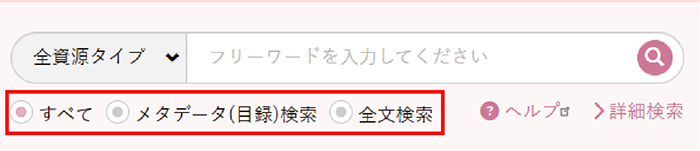
- All: Searches registered viewable metadata and text data (full text).
- Metadata Search: Searches registered viewable metadata (fields).
- Full-text Search: Searches registered viewable text data (full text).
1-2.About Resource Types
Click the tab on the left side of the search box to select a resource type and search.

- All Resource Types: Searches all genres.
- Organizational Publications: Searches Kosei Shimbun, Kosei, and Yakushin.
- History of Rissho Kosei-kai: Searches materials related to the history of Rissho Kosei-kai. (Viewable only by authorized users.)
- Videos: Searches videos.
- Audio: Searches audio recordings.
- Photos: Searches photos.
- Dharma Guidance (Text): Searches texts of Dharma guidance by Founder Nikkyo Niwano, the second president, and others.
- Rare Books: Searches classical materials and related items.
2.About Advanced Search
In Advanced Search, you can search by setting target fields and conditions in addition to search keywords.

2-1.Narrowing Search Fields
You can search for materials by specifying search keywords and conditions.
If some items are hidden, click the red-framed area to display the hidden section.


- <Rissho Kosei-kai Resource Type: Specifies the material genre.
- Keyword: Enter keywords to search for materials. (You can search without entering keywords.)
For how to enter keywords, see “2-2.How to Enter Search Keywords.” - Results per Page: Specifies the number of search results to display. (The default is 20.)
- Sort Order: Specifies the order of search results.
- Collection: Specifies the collection to search. (The collections available for viewing differ by user.)
- e-story: Specifies the e-story to search.
- Resource Type: Specifies the medium of the material.
- Title: Enter the title of the material. You can search using only part of the title. (Examples: Kosei Shimbun, completion ceremony, etc.)
- Creator: Enter keywords to search for the creator of the material. (Example: Rissho Kosei-kai)
- Responsible Department for Publication: Specifies the department publishing the material.
- Date Created: Enter keywords to search for the creation date of the material. (Examples: November 5, 1991; Heisei 3, November 5; 1991-11-01, etc.)
- Geospatial Information: Enter keywords to search for geographic information related to the material. (Examples: Niigata, Suganuma, Great Sacred Hall, Tokyo, etc.)
2-2.How to Enter Search Keywords
When using multiple search keywords, you can enter multiple keywords in the search box.
AND Search
By separating multiple keywords with half-width or full-width spaces, you can search for results that include all of the keywords entered.
“Shakyamuni” + “space” + “faith” → Results containing both “Shakyamuni” and “faith” will be targeted.

NOT Search
By separating multiple keywords with a half-width or full-width space and “-” (half-width minus sign), you can search while excluding the keyword that follows “-.”
“Shakyamuni” + “space” + “-” + “faith” → From search results matching “Shakyamuni,” results excluding “faith” will be targeted.

OR Search
By separating multiple keywords with half-width or full-width spaces and “OR” (uppercase), you can search for results that match any of the keywords.
“Shakyamuni” + “space” + “OR” + “space” + “faith” → Results containing either the keyword “Shakyamuni” or “faith” will be targeted.

You can use these search methods in combination.
(Example) “Shakyamuni” + “space” + “Lotus Sutra” + “space” + “-” + “faith” → From search results matching “Shakyamuni” and “Lotus Sutra,” results excluding “faith” will be targeted.

2-3.About the Facet Function
The facet function allows you to narrow down applicable items within the search conditions.
Clicking the checkbox for an applicable item in the search conditions searches only within the specified condition.
Click the selected checkbox again to clear the selection.

3.About Search Results
The red-framed area is the list of search results.
In addition, applicable items are displayed in the facet function area as search results.
Clicking an applicable material opens the material detail screen.For the material detail screen, see “About Search Results.”

In the blue-framed area, you can switch the list display between list view and thumbnail view.
Left: List view Right: Thumbnail view

3-1.About Text Search Results
When text is found in a search, the parts of the text displayed in the search results that match the search keywords are highlighted.


▼If you have any questions, please contact us.
https://archive.kosei-kai.or.jp/form